
Make Learning Visible™
The assessment data your accreditors require. The reflective practice that keeps students enrolled. One platform. One process.
The Missing Layer
How Conversational AI Turns Student Reflection into Institutional Intelligence

Rebecca Thomas
Pathways ePortfolio Director
Bucknell University

Jeffrey Yan
Cofounder & CEO
Digication
What we covered
Reflection
How AI-guided reflection deepens student learning across the curriculum.
Outcomes
Turn student reflections into actionable evidence of learning and program impact.
Retention
Surface early signals of student belonging and persistence at scale.
7,000+ Institutions Trust Digication
Chosen by institutional leaders for accreditation and outcomes. Loved by faculty for transforming reflection from a checkbox into genuine inquiry.









Why Institutions Come to Us
Most institutions are running assessment processes. Very few are getting anything actionable out of them. Here's why.
The data arrives too late
By the time work is collected, rubrics are applied, and results are compiled, the semester is over. You have data about students you can no longer help. Every cycle, you start from scratch.
Generic AI wasn't built for reflection
LMS vendors are bundling AI into every product. But AI designed to speed up grading or generate content is not the same as AI designed to deepen how students think and learn. Institutions are discovering this difference, often after implementation.
Assessment never reaches students
Assessment cycles produce reports for committees and accreditors. Rarely do those findings reach the students who generated them. When learning data never closes the loop, the whole process becomes a documentation exercise, not a driver of improvement.
One Platform. Three Ways It Changes What's Possible.
Real-Time Outcome Alignment
For Students and Programs Simultaneously
Most assessment tools show institutions what students learned after the fact. Digication aligns student work to learning outcomes as it happens, giving students visibility into their own progress while generating the program-level evidence your accreditors require. The same process. No parallel workflows. No extra burden on faculty.
Learn About Outcome Alignment & Assessment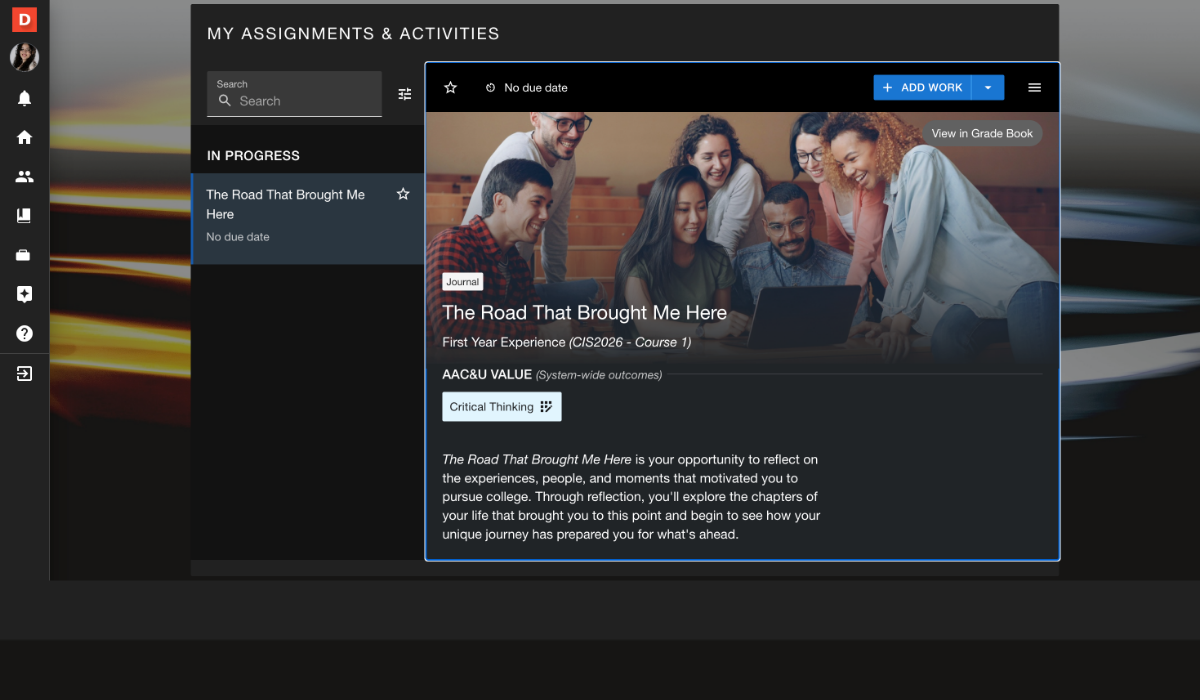
Assessment Analytics in Minutes.
Not Months.
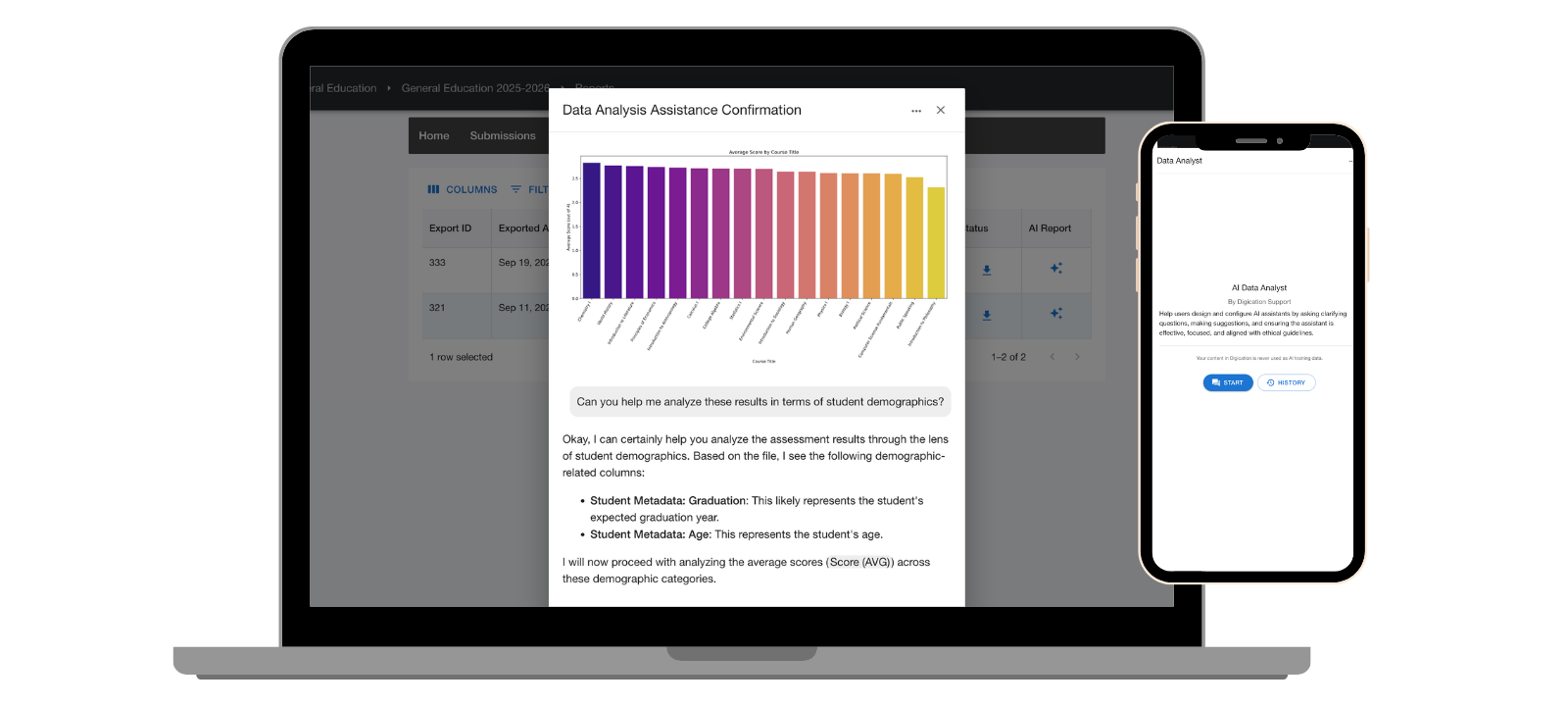
Digication's AI-enhanced analytics transform the evidence students generate through reflection into actionable program data, faster than any manual rubric process. Assessment directors get insights they can act on this semester, not next year. Faculty see what's working while there's still time to change course.
See How Assessment Analytics Work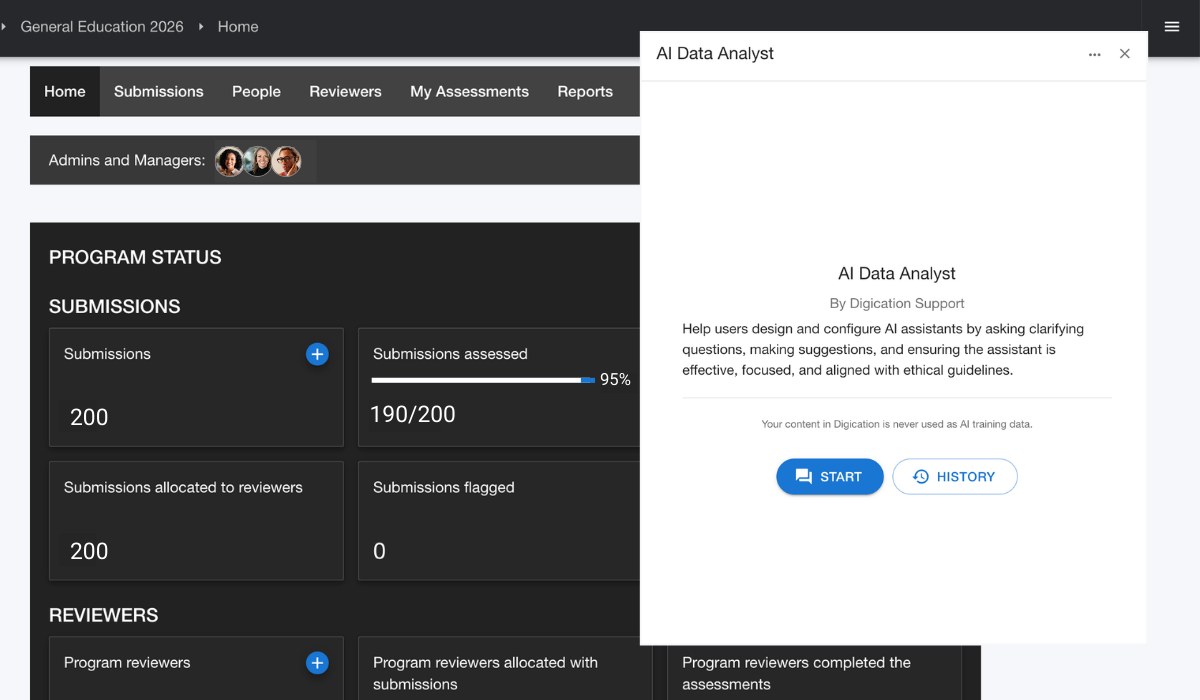
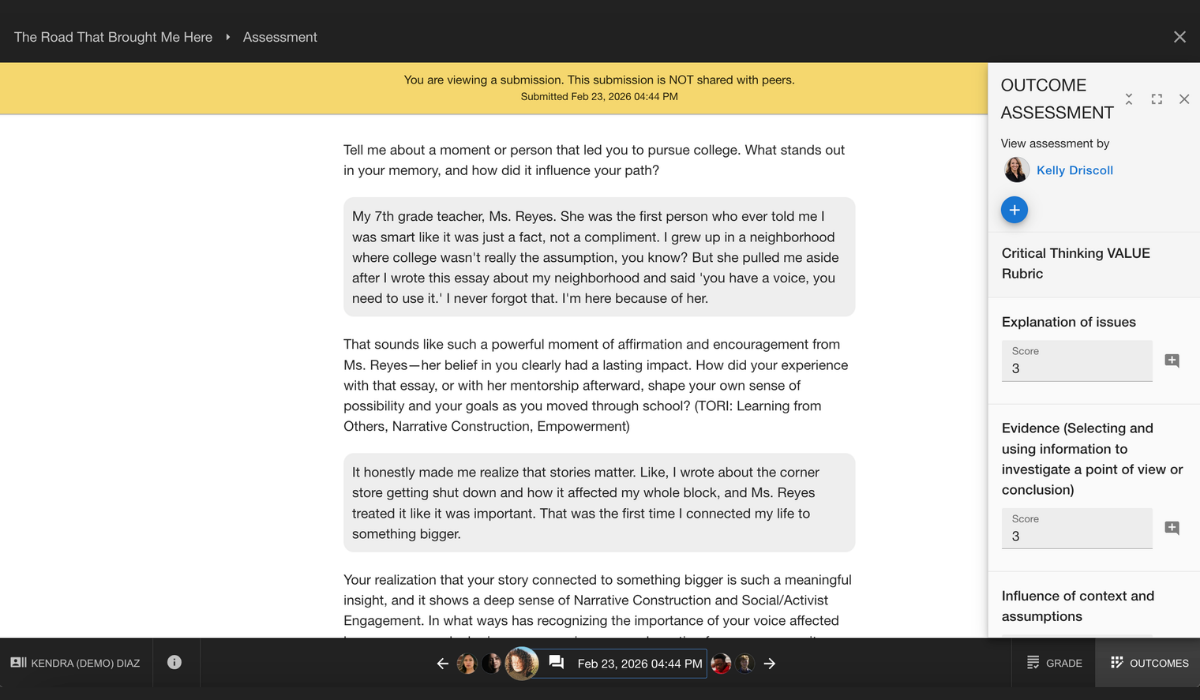
AI-Guided Reflection That Deepens Engagement
And Drives Retention
Powered by TORI, the Taxonomy of Reflective Inquiry, Digication AI guides students through structured inquiry that research shows deepens learning and strengthens their connection to their own academic progress. That depth of engagement produces something most early-alert and retention tools can't: rich, continuous signals about how students are actually thinking and developing, not just whether they logged in.
Built on Research. Proven in Practice.
Digication is built on TORI, the Taxonomy of Reflective Inquiry, a structured framework developed over more than two decades of research into how people learn through reflective practice. It spans 6 domains, 60+ categories, and 90+ fields of study.
Most AI tools in education are general-purpose. TORI is purpose-built: designed to guide students through the kind of structured inquiry that faculty know produces real learning, at a scale no individual instructor can sustain alone.
You're not choosing a software vendor that bolted on AI to stay competitive. You are choosing a research-grounded approach that produces demonstrably different outcomes for students, for programs, and for the accreditors asking whether your assessment is actually informing learning.
Explore TORI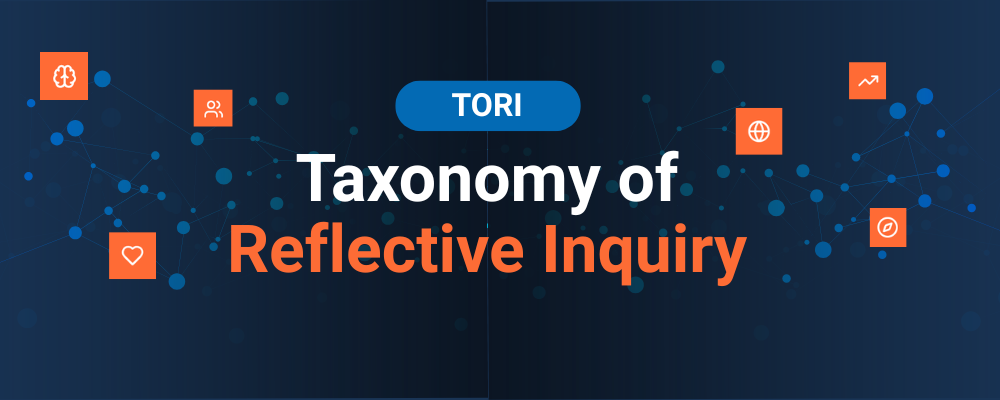
"TORI is purpose-built: designed to guide students through the kind of structured inquiry that faculty know produces real learning."
Built for Your Institution. Designed for Your Faculty.
For Institutional Leaders
Assessment directors. Provosts. Institutional effectiveness teams. Accreditation coordinators.
You need outcome data you can act on, in minutes, not months, mapped to the standards your accreditors care about, and embedded in processes that survive faculty turnover. Digication was built for exactly that.
For Faculty & Instructors
Course instructors. Program coordinators. Faculty who care about meaningful reflection.
You need tools flexible enough to match how you teach, rigorous enough to show students real growth, and simple enough that students actually engage. Digication has been a faculty choice for more than two decades because it makes reflection feel meaningful, not mandatory.
Hear From the Institutions Doing This Work
Jennifer Sparrow
Associate Dean of Academic Affairs, CUNY School of Professional Studies
How To Make the Student Experience Better With Outcome-Driven Assessment
Jennifer discusses how CUNY SPS closes the loop between assessment findings and actual program change, turning data into decisions that improve the student experience.
Joe Tranquillo
Associate Provost for Transformative Teaching and Learning, Bucknell University
Designing Curriculum for Student Success in an Interdependent World
Joe shares how Bucknell rethinks curriculum design to prepare students for complex, interdependent challenges, and how reflective practice anchors that transformation.
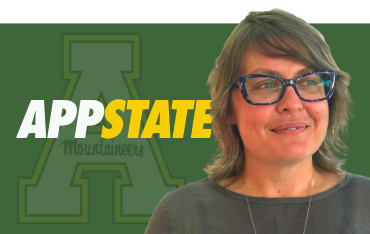
Sarah Zurhellen
Assistant Director, Writing Across the Curriculum, Appalachian State University
How Writing Can Help Promote Student Engagement Across the Curriculum
Sarah explores how reflective writing deepens student engagement across disciplines, and why faculty who use it see meaningful differences in how students connect with their learning.
Research and Resources for Assessment Professionals and Faculty
The Digication community includes researchers, institutional effectiveness professionals, and faculty who have been thinking seriously about reflective learning for a long time. These are some of the places they share what they know.
TORI
The Taxonomy of Reflective Inquiry. The research that powers how Digication guides students through structured reflection.
Explore TORIThe Digication Podcast
Real voices from institutions using Digication in assessment and accreditation contexts.
Listen NowLet's Make Learning Visible At Your Institution.
We don't show up with a slide deck. Tell us where your assessment process is breaking down, what your accreditors are asking for, and what's not working with your current tools, and we'll show you exactly how we'd solve it.